

Watch the Video Tutorial
Watch the step-by-step video tutorial to understand how to configure your business settings.Open Business Settings
Log in to your PrintsPad account and navigate to the Business Settings section from your dashboard.Here, you’ll find the options to manage your business information, bank account details, and invoice preferences.
Configure Your Bank Account Details
We recommend adding your business bank account details before creating invoices.These details can be displayed on your generated invoices, making it easier for customers to identify where to send payments.Enter the relevant bank account information requested in the settings.Make sure the details are accurate to avoid payment-related confusion.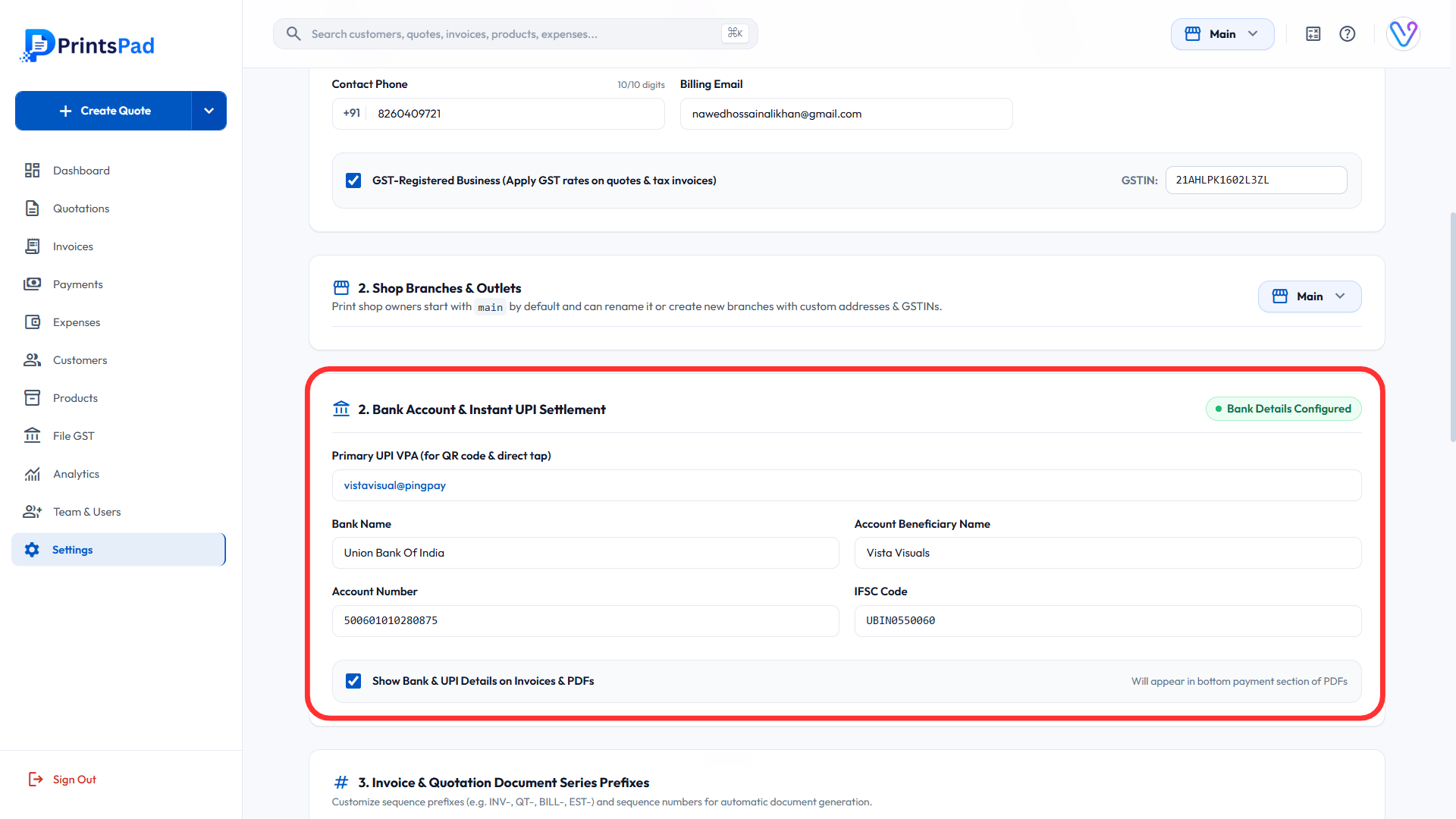
Adding bank account details is optional but recommended. You can skip this step if you don’t want to display bank details on your invoices.
Update Your Business Information
Next, configure your business information.You can manage details such as:
- Business Name: The name of your business displayed on your invoices.
- Business Details: Your business contact and address information.
Ensure that your business information is accurate and up to date, as it may appear on your generated invoices.
Customise Your Invoice Prefix
PrintsPad allows you to customise your invoice prefix.An invoice prefix is a combination of letters or characters placed before your invoice number.For example:
INV-001PP-0012026-001
Customise Your Invoice Theme Colour
You can personalise the appearance of your invoices by changing the invoice theme colour.Choose a colour that matches your business branding or logo.The selected theme colour will be used in the visual styling of your generated invoices.We recommend choosing a colour that keeps your invoices professional and easy to read.
6
Add and Customise Your Invoice Footer
The invoice footer allows you to include additional information at the bottom of your invoices.You can customise it to include details such as: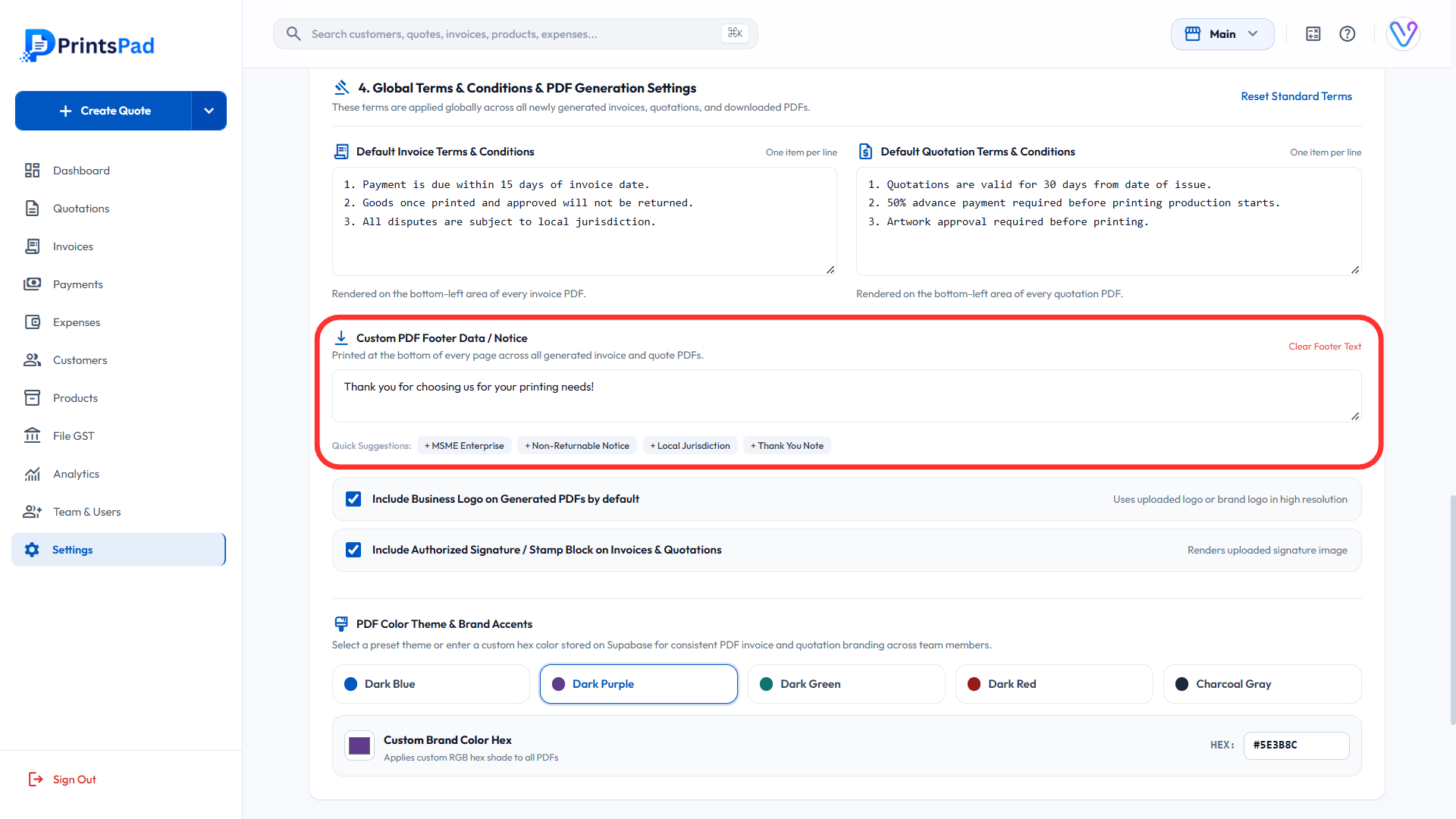
- Payment instructions
- Local jurisdiction
- Thank-you messages
- Additional business information, etc
Change the default Terms
Here change the default terms and conditions for the invoices and quotations according to your requirements.
8
Save Your Business Settings
After configuring the available options, make sure to save your changes.Your updated business information and invoice preferences will now be available when generating invoices.